Automatically Change Response Data Using a Pattern File
Overview
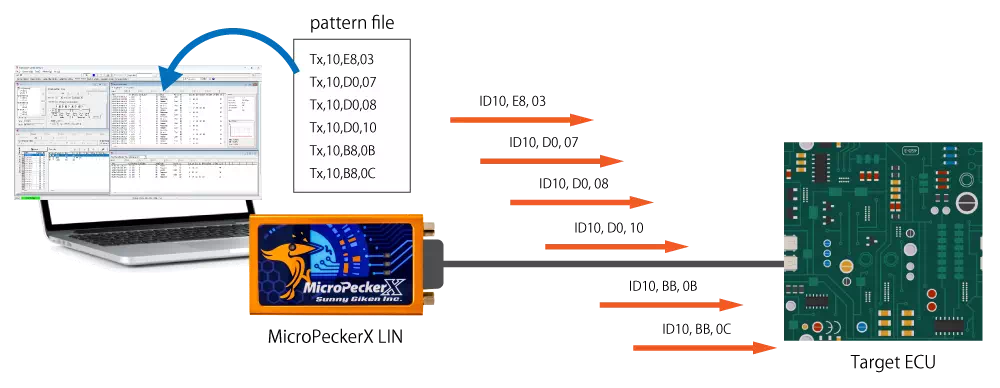
In simulation mode, use the pattern file function when you want to change response data automatically at transmission time.
This is useful when you want to change response data for the same ID or change commands under specific conditions in master simulation.
- During repeat transmission
- After time elapses
- Under specific conditions
This makes it possible to simulate pseudo sensor inputs to the ECU and reproduce specific sequence behavior.
Application Examples
- Emulate a temperature sensor signal for the ECU.
- Gradually change frame data to verify fail-safe behavior.
- Reproduce periodic changes that occur in an actual vehicle and evaluate communication stability.
Setup Procedure
When Applying to a Master Schedule
- A pattern file can be set for each frame in the master schedule.
- The frame ID is set with the pattern file ID taking priority.
1. Select the simulation mode
Open Simulation Window from the main menu. For LIN Simulation Mode, select Master Sim..
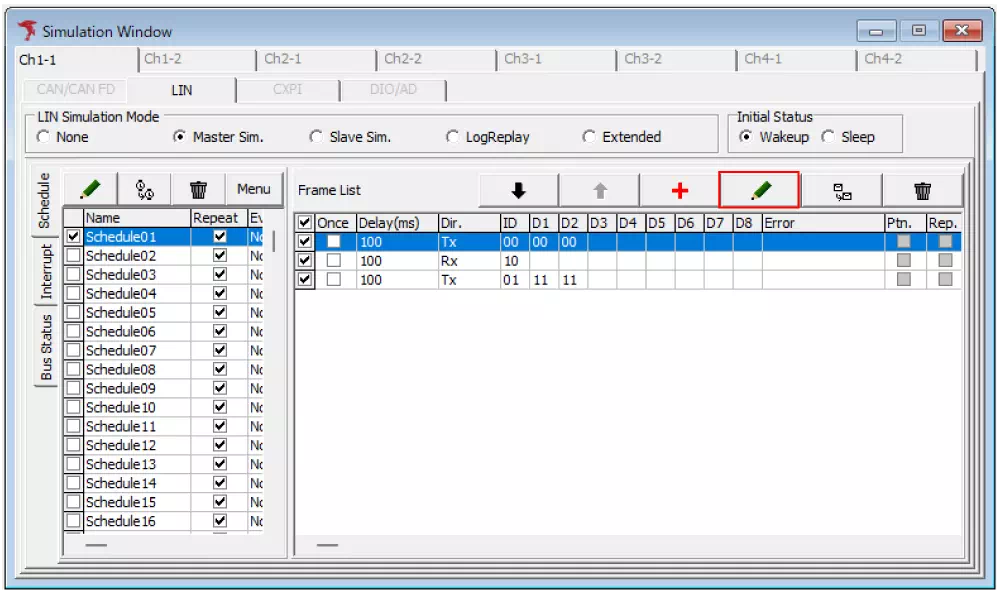
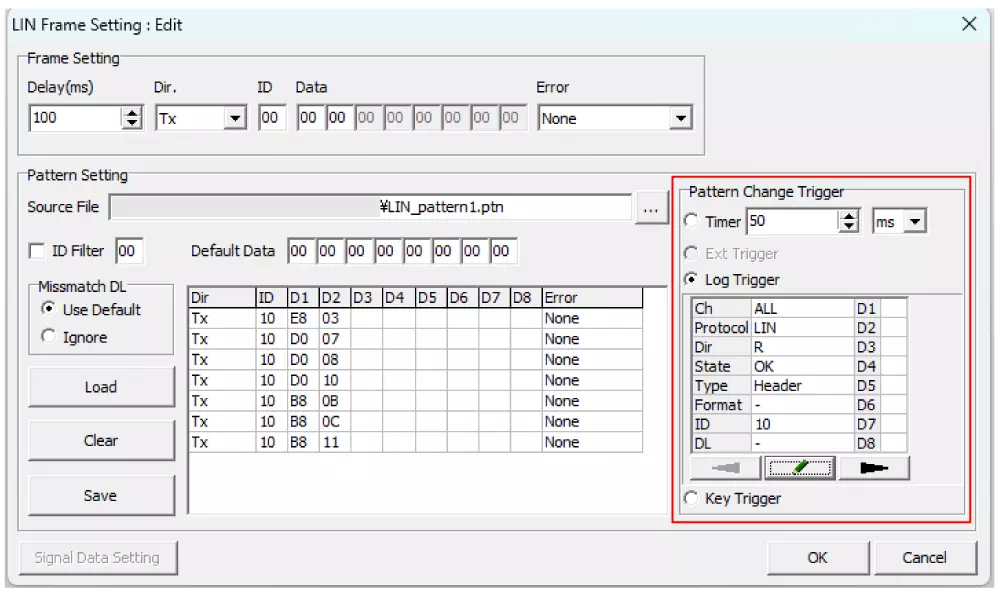
Select the frame to which you want to apply the pattern file from Frame List, then click the edit button to open the LIN Frame Setting dialog.
2. Load the pattern file
Click the  button for Source File in Pattern Setting to open the file dialog, then select the pattern file to load.
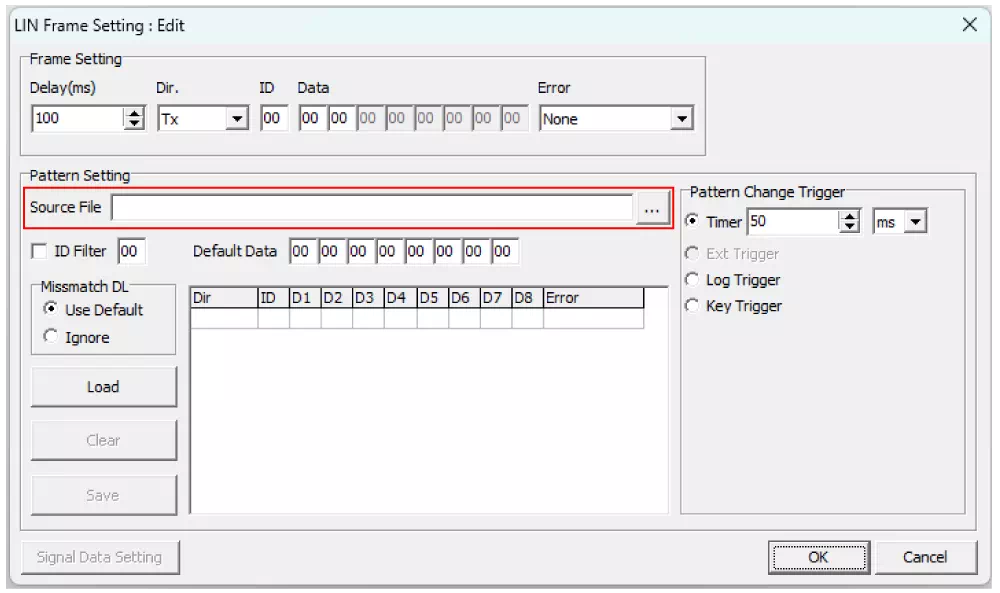
Click the Load button to load the pattern data and display it in the pattern data list.
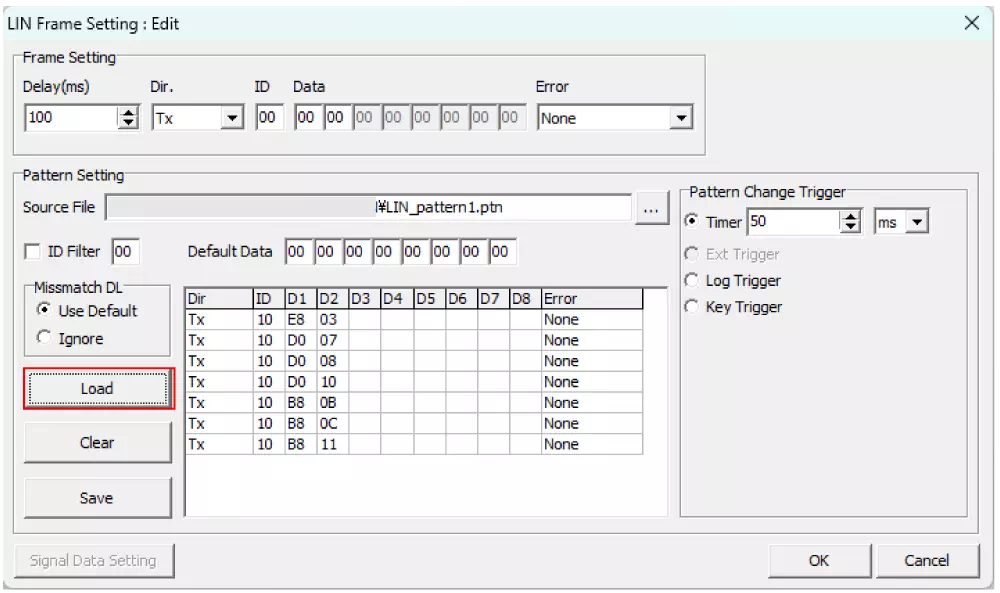
3. Configure Pattern Change Trigger
In Pattern Change Trigger, configure the trigger used to switch pattern data.
In this example, Log Trigger is configured.
4. Configure pattern repetition
Click the OK button in the LIN Frame Setting dialog to complete the pattern file settings and close the dialog.
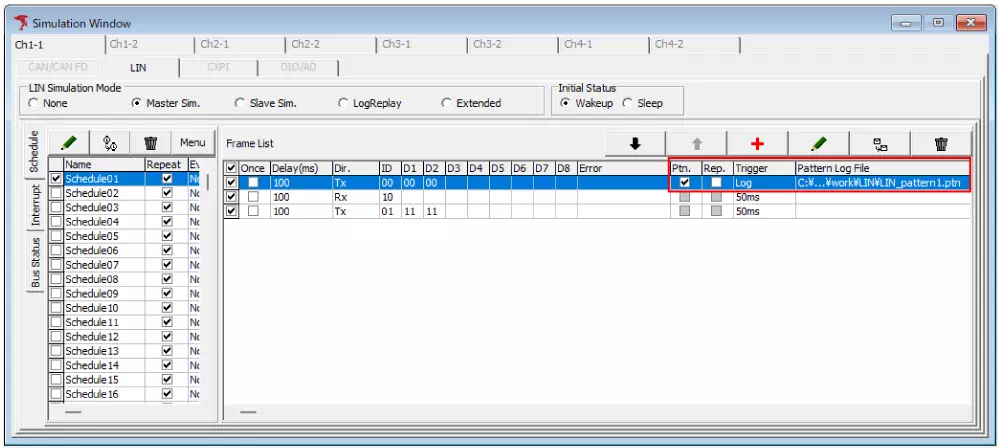
Frames with a configured pattern file have a check mark in Ptn. If Rep. is checked, the pattern file is executed repeatedly.
When Applying to a Slave Simulation Response Frame
- A pattern file can be set for each ID.
- The configured ID takes priority over the pattern file ID.
1. Select the simulation mode
Open Simulation Window from the main menu. For LIN Simulation Mode, select Slave Sim..
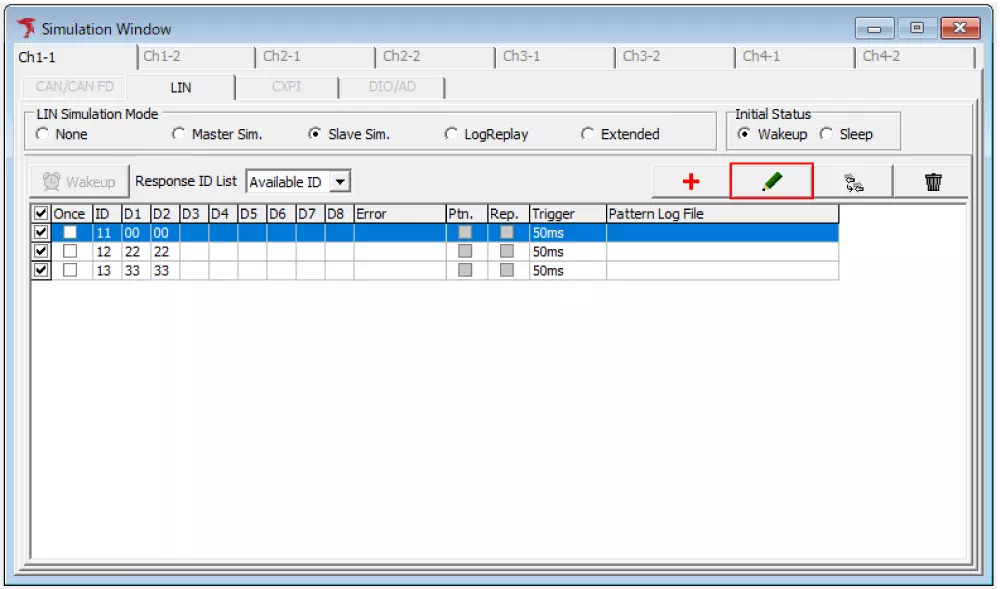
Select the frame to which you want to apply the pattern file from Response ID List, then click the edit button to open the LIN Response Setting dialog.
2. Load the pattern file
Click the button for Source File in Pattern Setting to open the file dialog, then select the pattern file to load.
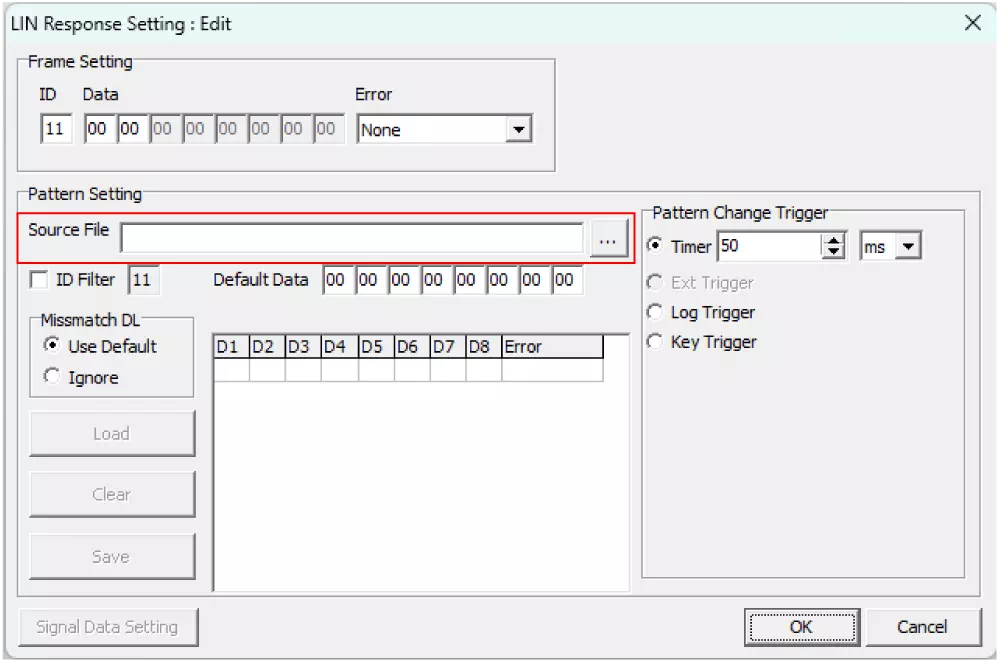
Click the Load button to load the pattern data and display it in the pattern data list.
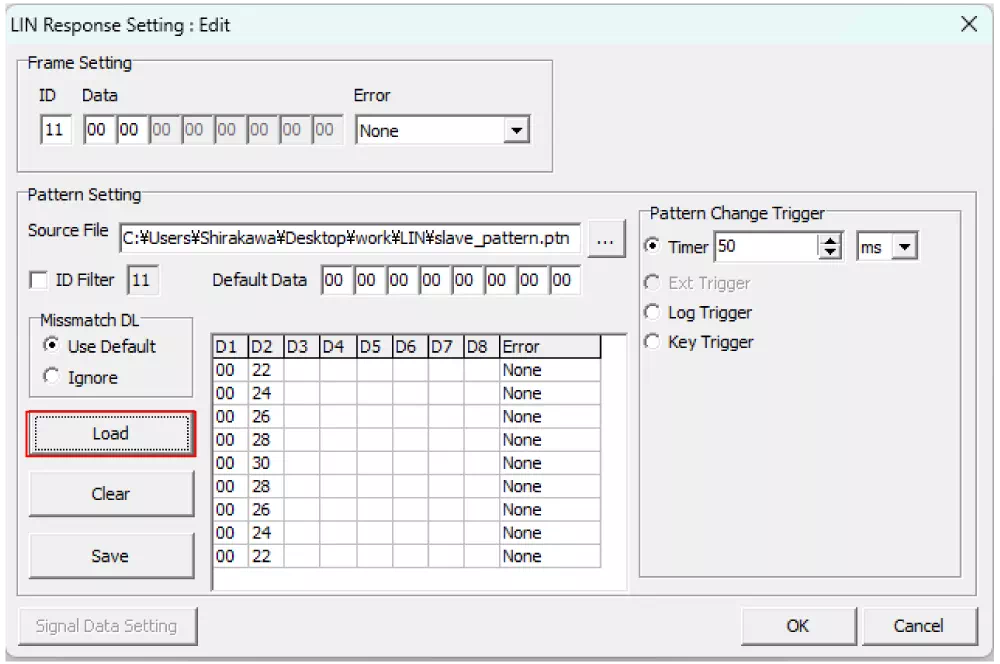
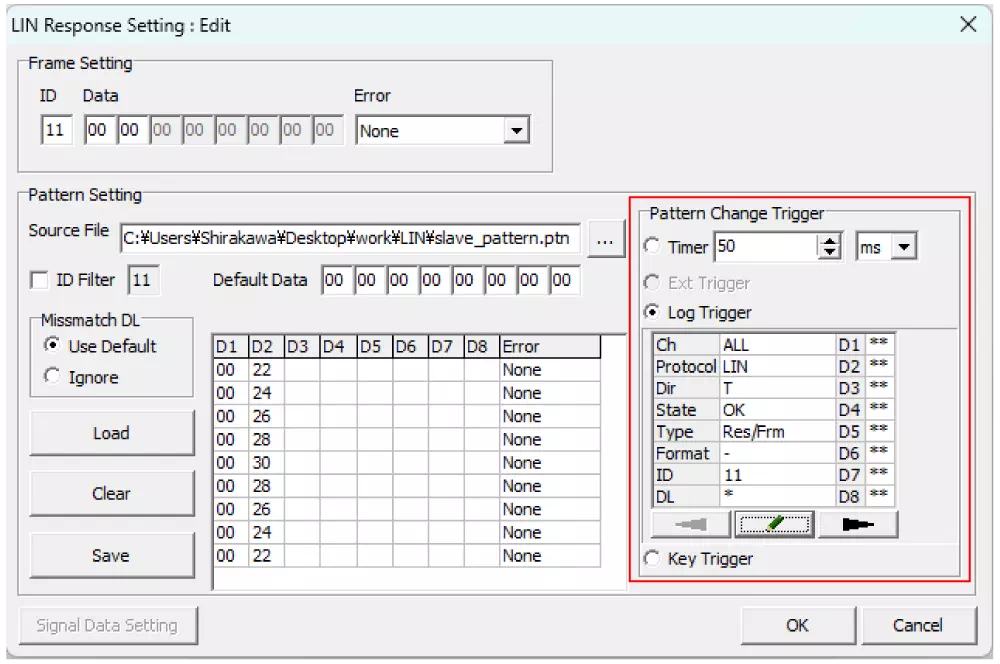
3. Configure Pattern Change Trigger
In Pattern Change Trigger, configure the trigger used to switch pattern data.
In this example, Log Trigger is configured.
4. Configure pattern repetition
Click the OK button in the LIN Response Setting dialog to complete the pattern file settings and close the dialog.
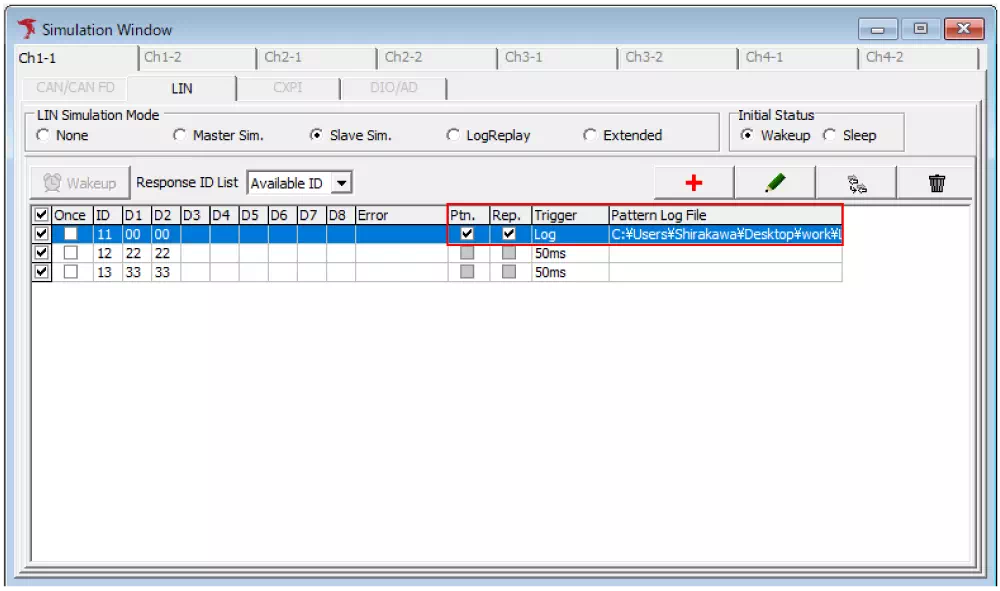
Frames with a configured pattern file have a check mark in Ptn. If Rep. is checked, the pattern file is executed repeatedly.
Pattern File Specifications
File Extension
The format of the pattern file depends on the extension, ptn or csv.
| File extension | Description |
|---|---|
| ptn | You can write it easily as comma-separated values. Note that loading fails if there are spaces before or after commas. |
| csv | It must be in MicroPeckerX log file format. This is convenient when you want to use transmission and reception patterns from a captured log. |
Pattern File with a .ptn Extension
Write one frame command, ID, and data item per line.
Lines are transmitted in order starting from the first line. A pattern file can contain up to 10,000 lines.
Frame Structure
| Column 1 | Column 2 | Column 3 | Column 4 | Column 5 | Column 6 | Column 7 | Column 8 | Column 9 | Column 10 |
|---|---|---|---|---|---|---|---|---|---|
| Command | ID | D1 | D2 | D3 | D4 | D5 | D6 | D7 | D8 |
Command Types
- Tx
- Rx
- Wakeup
- Sleep
Pattern File Sample (ptn)
Change Transmission Data for the Same ID (Target: Master/Slave)
Transmit while changing D0 and D1 of the response data.
Tx,10,E8,03
Tx,10,D0,07
Tx,10,D0,08
Tx,10,D0,10
Tx,10,B8,0B
Tx,10,B8,0C
Tx,10,B8,11
Change Transmission Data Including the ID (Target: Master)
For one frame in the master schedule, change the response data including command changes.
Tx,10,00,11
Rx,10
Tx,10,44,55
Sleep
Tx,10,88,89
Wakeup
Tx,10,CC,DD
Pattern Setting Screen Description
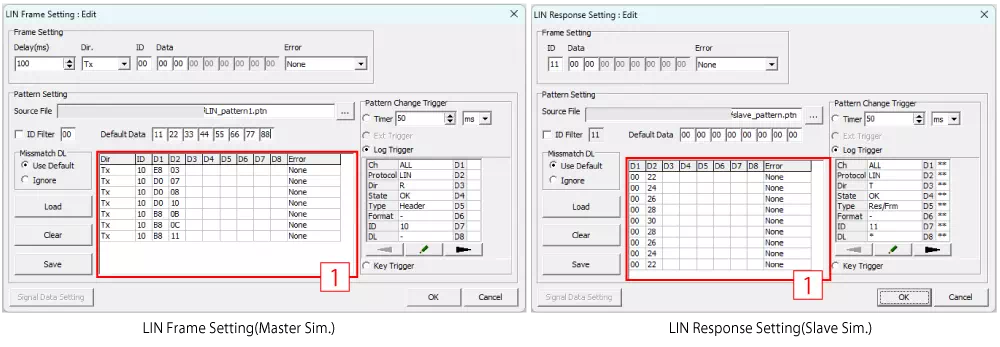
| Item | Description | Notes |
|---|---|---|
| Source File | Displays the full path of the pattern file selected with the button. | You can also set it by entering the full path directly. |
| button | Opens the file dialog and selects the pattern file to load. | The selected file is not loaded until the  button is clicked. button is clicked. |
| ID Filter | Sets whether to extract pattern data from the loaded pattern file. When the check box is ON, data other than the following conditions is treated as invalid. - The ID matches the value set in ID Filter- The type is Wakeup or Sleep | |
| Default Data | Sets the default data in hexadecimal to use when the data length configured in Device Setting - ID Definition differs from the pattern data length. | |
| Missmatch DL | Sets the handling when the data length configured in Device Setting - ID Definition differs from the pattern data length.- Use Default: Use default data for missing bytes- Ignore: Treat it as invalid and do not display it in the list | Example when Use Default is set:ID definition length: 4 bytes Pattern: 08,4C (2 bytes) Default: 11,22,33,44,55,66,77,88 -> Result: 08,4C,33,44 |
| button | Loads the pattern file shown in Source File and displays it in Pattern Data List. | |
 button button | Clears everything in Pattern Data List. | |
 button button | Saves Pattern Data List with any file name. | |
| Pattern Data List (Area 1) | Displays the pattern data contained in the loaded pattern file. | |
| Pattern Change Trigger | Sets the occurrence conditions for pattern change events. | |
 button button | Saves the settings and closes the dialog. | |
 button button | Discards the settings and closes the dialog. |
Troubleshooting
Q: I want to switch patterns every time data is transmitted
In Master Simulation
If you set Pattern Change Trigger to Log Trigger for the reception of the schedule frame immediately before the target frame, you can switch the pattern when the target frame is transmitted. Alternatively, if you set the Timer in Pattern Change Trigger to the same cycle as the transmission cycle of the target frame, you can switch the pattern on each transmission.
In Slave Simulation
If you set Pattern Change Trigger to Header reception of the target ID in Log Trigger settings, you can switch the pattern on each transmission.