Functional Overview and Basic Operations
Functional Overview
The monitoring function of MicroPeckerX LIN Analyzer Plus captures and displays frame data on connected LIN buses in real time.
| Function | Description |
|---|---|
| Real-time simultaneous monitoring | You can monitor data from up to 4 connected channels simultaneously. |
| Log file output | LIN bus frame data is automatically saved as CSV text files in a folder specified on the PC. |
| Display mode switching | In Monitor Window, you can switch between Single View (Tx/Rx data and communication status for one channel) and Dual View (Tx/Rx data for two channels side by side). In Dual View, channels for DIO/AD can also be displayed side by side. |
| Latest data per ID | In Each ID Window, only the latest frame information for each transmitted/received LIN ID is displayed so you can quickly grasp current status. |
| Filter display | You can narrow displayed Tx/Rx data to only data matching specific conditions. |
| Label display | You can assign arbitrary labels to Tx/Rx data matching specific conditions and highlight them by changing text/background colors. |
| Trigger function | You can automatically start/stop saving data to log files based on detection of configured conditions. |
This enables efficient monitoring of multiple buses and quick understanding of required data.
In this chapter, Monitoring and Logging are defined as follows.
| Item | Monitoring (or Monitor) | Logging |
|---|---|---|
| Behavior | Data captured from LIN bus is displayed in real time in GUI application. | Data captured from LIN bus is automatically saved in CSV format to a specified PC folder. |
| Data persistence | Tx/Rx data is stored only in GUI application memory and is erased when application closes. | Data saved in files remains after application closes and can be analyzed/shared later. |
Basic Operations
1. Start monitoring
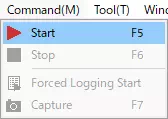
Start monitoring by one of the following operations.
- Select
Command-Startfrom menu bar.
- Click
 on toolbar.
 - Press
F5.
Depending on Option Settings, screen layout may automatically switch to Monitor Layout when monitoring starts.
2. Display monitoring data
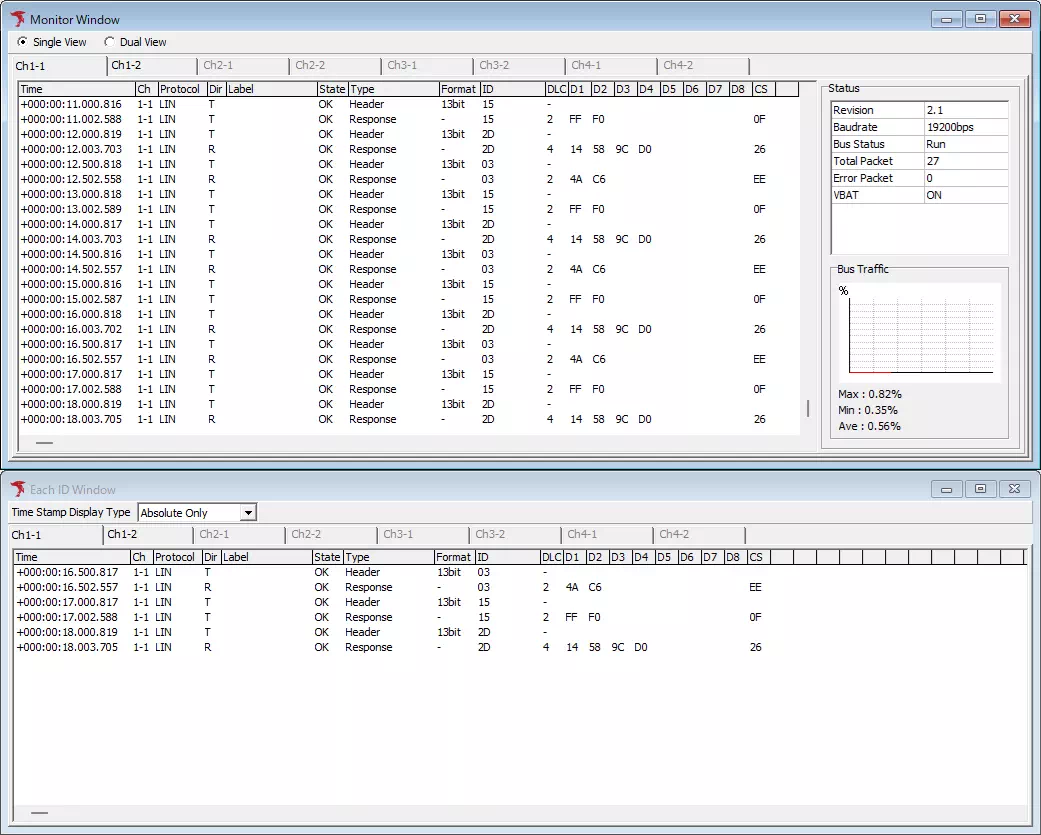
During monitoring, logs can be checked in Monitor Window and Each ID Window.
3. Stop monitoring
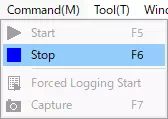
Stop monitoring by one of the following operations.
- Select
Command-Stopfrom menu bar.
- Click
 on toolbar.
 - Press
F6. - Press
Esc.
Depending on Option Settings, screen layout may automatically switch to Analyze Layout when monitoring stops.
Save Logging Settings
From toolbar Log settings, you can configure logging of data during monitoring.
For details, see Toolbar Log Settings.
