Managing Signal Catalog and Communication Definitions
Overview
Signal Catalog manages signal definitions and Signal Sets. Open it using “Signal Catalog” on the main toolbar; you can prepare settings without displaying Signal Window. The button with the same name in Signal Window is another entry point. Definitions are shared across Sets, while channels and display settings are managed per Set.

Figure 1. Example with Only selected Set ON and a Set containing LIN Speed and State selected.
The Catalog-wide count differs from the selected Set's count.
Roles and Terminology
| Term | Meaning |
|---|---|
| Frame / Message | A communication unit with an ID, data length, and data. Multiple signals can be defined in one frame. |
| Bus signal | A signal obtained by extracting bits from frame data. Shown as Bus signal in the Catalog. |
| Raw value | The unconverted value extracted from a frame. Distinguish this from the HEX display of all data bytes. |
| Physical value | A numeric value converted from a Raw value using a factor, offset, or similar conversion; for example, speed in km/h. |
| Logical value | A state name corresponding to a Raw value; for example, displaying 0 as Off and 1 as On. |
| Signal Catalog | Screen for managing signal, frame, LIN schedule, and other definitions. |
| Signal Set | A combination of signals selected from the Catalog, with channel and display destination settings. |
| Current Set | The Signal Set currently in use. Check that it matches the Set you are editing in the Catalog. |
Having a definition in the Catalog, belonging to a Set, having a channel assigned, and having a display enabled are separate settings.
A derived signal is calculated from a formula using registered signals as inputs. It has no bit region directly corresponding to a source frame.
Relationships Between Definitions, Sets, and Their Uses
Arrows indicate selection/application operations, not continuous automatic synchronization with every destination. Analysis can also use recorded definitions or MPXSIG. You can proceed from the Catalog to preparing analysis or transmission without configuring a monitoring Set.
| State | Where to check | Meaning |
|---|---|---|
| Registered | Signals / Frames / LIN Schedules in the Catalog | Exists as a definition; does not mean communication has started or display is enabled. |
| In Set | Signals in the selected Set | Used in that Set. Turning this OFF retains the shared definition. |
| Channel assigned | Assign Channel / Edit | Determines which actual channel's frames correspond to the signal. |
| Display target | Values / Graph / Bar / Status | Display destination. Graph also requires Area and axis assignments. |
| Current | Signal Sets / Signal Window | The Set currently monitored; distinguish it from the Set being edited. |
Screen Reference
| Item | Description |
|---|---|
| Search | Searches the list by name and other properties. Clear the search text if you cannot find an item. |
| Catalog count | Shows the total number of registered Catalog entries and the limit. |
| Signals | Shows signal definitions and their membership/usage in the selected Set. |
| Frames | Shows frame definitions. Check which frames can be used to generate simulation settings. |
| LIN Schedules | Shows LIN schedules imported from an LDF. |
| Signal Sets | Selects the Set to edit. The Set marked Current is currently in use. |
| Only selected Set | Shows only signals belonging to the selected Set. |
| In Set | Adds a signal to the selected Set. Turning it off leaves the definition in the Catalog. |
| Signal Details | Shows the definition and settings for the selected Set. Expand or collapse using the heading. |
| Memo | Edits a memo for the selected definition. |
 | Closes the Catalog. Individually confirmed operations are retained. |
Checking Registration Results for the Sample LDF
After importing the sample LDF, open Signals, Frames, and LIN Schedules in order to check the correspondence within the same definitions.
Signals: Check signals and their placement
Check that Speed and State have Message SensorFrame and Import source signal-example.ldf. Figure 2 is an excerpt of the 2 rows displayed using “Show in Signals” from Frames. In Set is OFF and CH is unassigned, so configure Set membership and channel assignments for monitoring. Figure 1 shows the result after configuring these.

Figure 2. Checking Speed and State in Signals after registration.
Frames: Check frame conditions
Select SensorFrame with Source signal-example.ldf. Protocol is LIN, ID is 0x10 (decimal 16 in the LDF), Bytes is 2, Signals is 2, and Publisher is SensorNode. Selecting the row shows its details; use “Show in Signals” to check related signals.
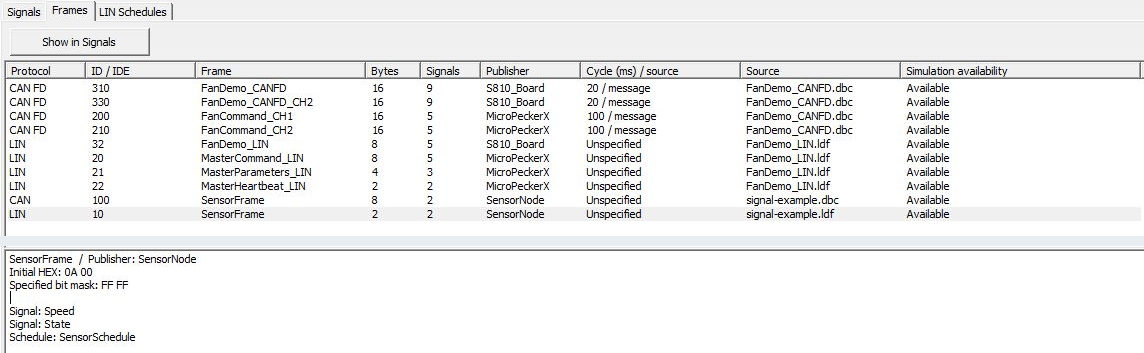
Figure 3. Checking SensorFrame's frame conditions.
LIN Schedules: Check transmission order and Delay
Select SensorSchedule with Source signal-example.ldf. The sample has 1 slot, Master MasterNode, and Bitrate 19200 (19.2 kbps). Details below shows 1 SensorFrame SensorNode Rx 100 ms. For an LDF with multiple slots, also check their order and each Delay.
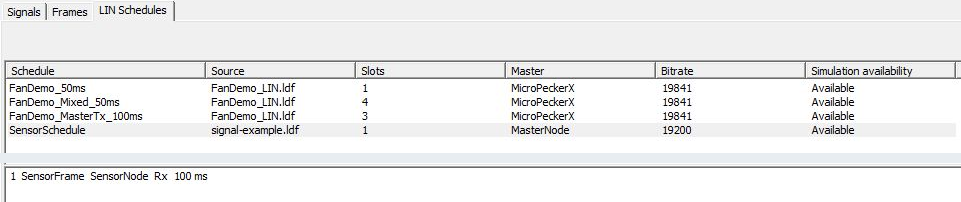
Figure 4. Checking SensorSchedule slots and Delay.
Registration in the Catalog alone does not start transmission. Apply definitions to transmission settings on the Simulation side. This is separate from monitoring Set membership and channel assignments.
Signals Tab Operations
| Button | Operation |
|---|---|
 | Adds a bus signal. |
 | Adds a derived signal. |
 | Edits the selected definition and settings such as its display settings in the selected Set. |
 | Duplicates the selected definition. This differs from duplicating an entire Set. |
 | Deletes the selected definition from the Catalog. To remove only its membership, turn off In Set instead. |
 | Imports communication definition files such as LDF files. |
 | Saves the Catalog and all Signal Sets to MPXSIG. |
 | Loads the Catalog and all Signal Sets from an MPXSIG file. |
Editing or deleting a definition also affects other Sets that use it. Check its uses before changing frame conditions or bit positions. If derived signals, triggers, or other settings reference it, resolve the references according to the confirmation or error messages on the screen.
Signal Sets Operations
| Button / item | Description |
|---|---|
 | Creates an empty Set. |
 | Duplicates the selected Set. Distinguish this from Copy for duplicating definitions. |
 | Renames the selected Set. |
 | Deletes the selected Set. This does not delete signal definitions from the Catalog. |
 | Makes the selected Set active. Check the display targets in Signal Window. |
| Signals count | Shows the signal count and limit for the selected Set. Account for input signals required by derived signals. |
Adding Signals to a Set
- Select the Set to edit under Signal Sets.
- Turn off Only selected Set if necessary and find the target in the Signals list.
- Turn on In Set, select the channel in Assign Channel, and click OK.
- Check the channel and display targets using Edit.
- Click Set Current, then Close. Check that the target appears in Current Set.
Figures 5 and 6 add Speed and State from the sample LDF to “LIN Sensor.” Select CH1-1 in Assign Channel.
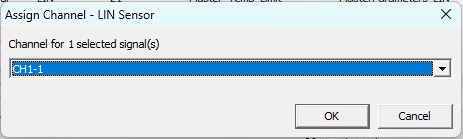
Figure 5. Assigning CH1-1 to signals added to a Set.

Figure 6. LIN Sensor with membership, channels, and display targets configured.
In Figure 6, Speed and State have In Set ON and CH CH1-1. Check Protocol LIN, ID (Hex) 10 (0x10), and Message SensorFrame on the same rows. Monitor is On and Graph is not used. “Only selected Set” is ON, so the 2 signals belonging to this Set are displayed.
Signals registered only in the Catalog, or signals whose saved destination device is unavailable, may be retained without a channel assignment. A definition in the list is not associated with actual frames until a channel is assigned.
Deleting Definitions or Membership
| Operation | Scope of change | Retained items / cautions |
|---|---|---|
| Turn In Set OFF | Removes the target signal from the selected Set. | Shared definitions and membership in other Sets remain. Check input dependencies if derived signals depend on it. |
| Delete in Signals | Deletes the selected signal definition from the Catalog. | It also becomes unavailable in other Sets. Check uses, derived signals, and Trigger references before deleting. |
| Delete a Signal Set | Deletes the selected Set and its channel/display settings. | Shared Catalog definitions remain. Check which Current Set will be used. |
| Remove Import | Removes signals, frames, and LIN schedules belonging to the selected import source together. | Check affected Sets, derived signals, Triggers, and links to applied definitions removed on the Simulation side. Configured Simulation frames, responses, and HEX data remain. |
| Load | Replaces the shared Catalog and all Sets with MPXSIG contents. | Communication logs and Simulation transmission settings are not restored from MPXSIG. Check channel assignments and references. |
To delete an entire import source, open “Remove Import” in the shared Catalog. Select one file in “Imported Files,” check signals, frames, and IDs, then click “Remove Import.” Review the affected scope in the confirmation screen; to cancel, do so before applying. Save under a different name first in case of deletion or replacement. After confirmation, Close cannot undo the operation.
Definition Changes and Their Uses
| Operation | Monitoring | Signal Trigger | Existing analysis results | Existing transmission settings |
|---|---|---|---|---|
| Edit a shared definition | Applied to Sets using the same definition. | Check references if frame conditions or conversions change. | Retained results are not updated. | Check definitions and HEX data used; apply again if needed. |
| Change In Set | Changes signals used in the selected Set. | Affects candidates for new selection. Saved references remain usable if their definitions and channels are valid. | Unchanged. | Unchanged. |
| Switch Current Set | Changes current monitoring targets. | Changes candidates for new selection. | Unchanged. | Unchanged. |
| Change analysis definitions | Shared definitions are unchanged. | After closing the analysis Catalog, check target signals and enabled states before resuming monitoring. | Applied on the next Analyze. | Unchanged. |
| Apply to Simulation | Monitoring settings are unchanged. | Reference settings are unchanged. | Unchanged. | Applied to selected schedules/responses. Check Device changes separately. |
| Remove Import | Deleted signals become unavailable in Sets. | Reselect if the target was referenced. | Retained results are not updated. | Configured frames and HEX data remain; links to the corresponding applied definitions are removed. |
| Load MPXSIG | Replaces all Sets; check assignments. | Check referenced definitions and channels. | Retained results are not updated. | Manage transmission settings with MPXXML and compare definitions and HEX data. |
Saving and Loading
Here, save the Catalog containing LIN Sensor, reload the same MPXSIG, and compare membership and channels. The loading example uses ln1-monitor-catalog-before-reuse.mpxsig, saved after adding derived signal Speed_mps to Speed and State. Figure 6 shows 2 signals before adding Speed_mps, while Figures 7 and 8 show 3 afterward; they represent different registration stages.
Save includes the Catalog and all Signal Sets, not only the selected Set.
Saving
- Confirm each editing dialog with OK.
- Select LIN Sensor and check In Set, CH, and display destinations such as Monitor for the signals to save. This example's members are Speed, State, and Speed_mps.
- Click Save in the Catalog.
- Specify the destination and file name, and save with the MPXSIG extension. Note the file name for reloading.
MPXSIG saves the Catalog and all Signal Sets together. Its purpose differs from the source LDF, communication logs, analysis result CSV files, and regular configuration files. Also manage original communication definition files so the version used can be identified.
Loading
- To retain the current Catalog, first Save it under a different name.
- Using Load, select the same MPXSIG saved above.
- Read the “Replace the Catalog and all Signal Sets?” confirmation and proceed if you want to replace them.
- Select LIN Sensor and check signals' In Set settings and channels. Figure 7 shows the state immediately after loading: membership is retained for 3 signals, while Speed and State have CH Unassigned.
- Select Speed, open Edit, check or specify CH1-1 on the Signal tab, and confirm with OK. In this example, State in the same SensorFrame also becomes CH1-1 (Figure 8).
- Check that LIN Sensor is Current, along with channels, conversion formulas, and destinations such as Monitor and Graph. If another Set is Current, switch using Set Current.

Figure 7. Checking membership and unassigned channels after loading.

Figure 8. Channels reassigned for signals to use.
This loading example displayed “Catalog loaded. CH assignments cleared; assign channels to Current Set.” Check In Set ON separately from assignment to an actual channel. Speed_mps is a derived signal, so its CH field shows Derived. Also check channels and display destinations for the input signals used in monitoring.
Load does not simply add the selected Set. If any saved destination does not match the device/channel configuration, channel assignments are cleared in all Sets. Check definitions and display settings and reassign channels for the signals you use. Closing with Close does not undo a confirmed load operation.
Restoring Saved Sets at Startup or Device Refresh
At startup, the application restores the Current Set automatically saved at the previous shutdown. “Device” → “Refresh” rechecks the destinations of assignments in the current Set. To use an MPXSIG saved under a different name, use Load as described above. Saved Set channel assignments are retained, and signals on connected channels whose device serial number, internal channel, and device type match are included in monitoring. If the same physical channel is recognized under a different channel number, the channel number used during monitoring is mapped automatically.
Signals whose destination channels cannot be verified, and derived signals that depend on unavailable inputs, remain pending. Reconnect the saved device and run “Refresh” to recheck assignments. Status bar messages show pending assignments or channel-number differences. When loading signal settings from MPXXML, also check the loading restrictions.
Registration Limits
| Item | Limit |
|---|---|
| Catalog | 10,000 entries |
| Signal Set | 10 Sets |
| One Set | 128 signals, including required input signals |
| Graph targets | 32 signals per Set (including hidden assignments; assigning the same signal to multiple Areas counts as 1 signal) |
Distinguish the Catalog count from the number used in Current Set. If a limit is reached, separate Sets by purpose and organize the signals in use.
For saved-log analysis, result output, and use in transmission settings, see the respective instructions.