Importing Communication Definition Files
Overview
Import signal and frame definitions from an LDF into Signal Catalog. After importing, configure the appropriate destinations for monitoring, analysis, or transmission.
Importing a file, adding signals to a Set, and configuring device communication are separate operations. Loading communication definitions does not mean that communication settings in Device Window or transmission operations are automatically ready.
Import Procedure
- Stop monitoring and open Signal Catalog from the main toolbar.
- Click Import and select an LDF file. You can use the sample LDF for this example.
- In Import Communication Definitions, check the character encoding, signal/frame counts, and warnings.
- Select the required items in Signals. Expand nodes and frames to check signal names and bit positions.
- Check frame publishers, initial values, schedule order, and Delay in Frames and LIN Schedules. Frames and schedules in the LDF are automatically registered regardless of the selection in Signals.
- Click Import.
- Check the import results in the Catalog's Signals, Frames, and LIN Schedules, then save to MPXSIG with Save.
- Choose the destination from the following table.
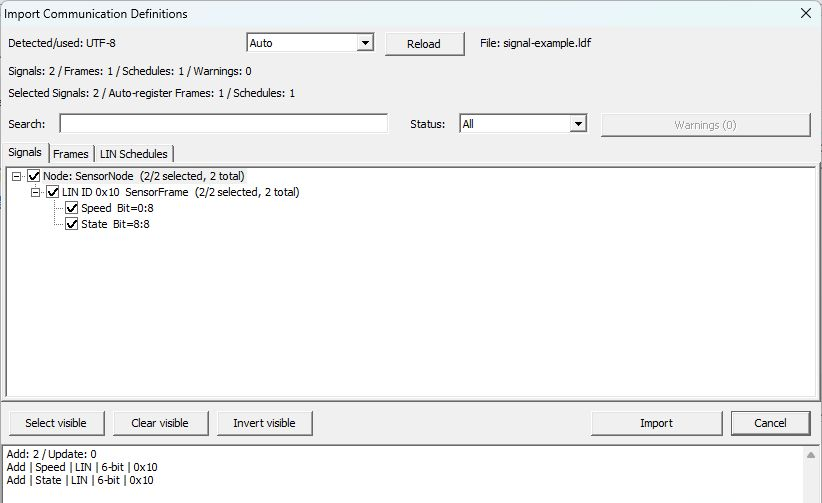
Figure 1. Import preview of the sample LDF.
The sample contains 2 signals (Speed and State), 1 frame (SensorFrame), and 1 schedule (SensorSchedule). Compare counts and target names before importing. Executing Import on this screen does not start reception or transmission.
| Purpose | Operations after import |
|---|---|
| Real-time monitoring | Configure Set membership, channel assignments, displays, and Current. |
| Saved-log analysis | Select the log and matching definitions, then compare channels. |
| Schedule / response transmission | Apply to Simulation. Configuring a monitoring Set is not a prerequisite for applying definitions. |
Import Screen Reference
| Item | Description |
|---|---|
| Detected/used | Shows the detected and used character encodings. |
| Encoding selection / Reload | Reloads using automatic detection or the specified encoding. Check this if names are garbled. |
| Signals / Frames / Schedules / Warnings | Shows counts of parsed definitions and warnings. |
| Selected Signals / Auto-register Frames | Shows the selected signal count and the counts of frames and schedules to be registered automatically. |
| Search / Status | Filters the display by name or status. Clear the filters if you cannot find an item. |
| Signals | Shows signals in a node/frame hierarchy and lets you select items to import. |
| Frames | Shows frame definitions. |
| LIN Schedules | Shows schedule definitions from an LDF. |
| Select visible / Clear visible / Invert visible | Selects, clears, or inverts selection of visible items. |
| Results / description area at the bottom | Shows candidates for addition/update and descriptions of selected items. |
| Import / Cancel | Executes or cancels this import. |
Read the explanations before using items marked as not importable, unsupported, or carrying warnings. Successfully opening a file does not mean all definitions can be used correctly.
Checking Errors and Warnings
“Import Errors” appears if the file cannot be read or parsing fails. Check the location and reason in Line, Column, and Description, then select a row for details and troubleshooting information. If no location is shown, check that the file exists, that you have read permission, and the displayed reason. After correcting the issue, close the error screen and reopen the file using Import in the Catalog.
If you reach the preview, check warnings under “Warnings (count).” For garbled text, select the encoding again, click “Reload,” and recheck the selected items and warnings.
Figure 1 is a normal example with Warnings 0. Figure 2 is a warning example using a copy of the public sample named “signal-example-warning.ldf,” with only line 19 inside SensorFrame in Frames changed from State, 8; to StateTypo, 8;. The declaration in Signals remains State, so it no longer matches the signal name referenced by the frame.
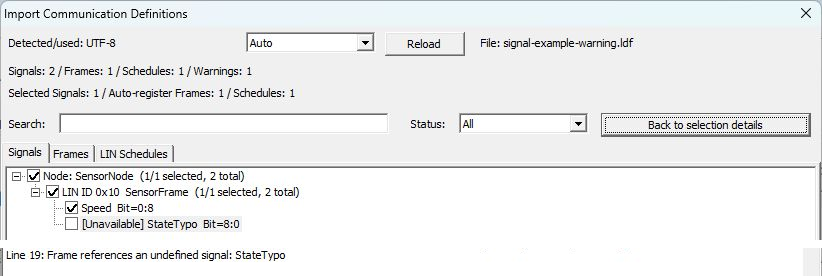
Figure 2. Excerpts from the top of the warning import preview and its description area.
In Figure 2, encoding is UTF-8, Signals is 2, Frames is 1, Schedules is 1, and Warnings is 1, but Selected Signals is 1. Under SensorNode → LIN ID 0x10 SensorFrame, only Speed (Bit=0:8) is checked; [Unavailable] StateTypo (Bit=8:0) is unchecked.
Clicking “Warnings (1)” displays “Line 19: Frame references an undefined signal: StateTypo” at the bottom. The button changes to “Back to selection details”; click it to return to descriptions of selected items. The description shown when selecting an item also confirms that the frame references an undefined signal.
In this example, we closed with Cancel, restored the reference in the copy to State, 8;, and reopened it using Import in the Catalog. After correction, Warnings was 0, Selected Signals was 2, and both Speed (Bit=0:8) and State (Bit=8:8) were checked. Compare against the normal example in Figure 1. Neither the warning example nor the correction check confirmed the import.
Checks After Importing an LDF
After “Import” returns you to Signal Catalog, check definitions from the same source, signal-example.ldf, in this order.
- Check signals in Signals. Check that
SpeedandStatehave MessageSensorFrameand Import sourcesignal-example.ldf. Figure 3 shows the 2 rows filtered using “Show in Signals” from the target Frames row. In Set is OFF and CH is unassigned. Configure the Set and channel afterward if using them for monitoring.

Figure 3. Imported Speed and State rows.
- Check frame conditions in Frames. Select
SensorFramewith Sourcesignal-example.ldf. Protocol is LIN, ID is10(hexadecimal 0x10, decimal 16 in the LDF), Bytes is 2, Signals is 2, and Publisher isSensorNode. Figure 4 also contains definitions from other files, so compare Source and Protocol to avoid confusing it with a CAN frame of the same name.
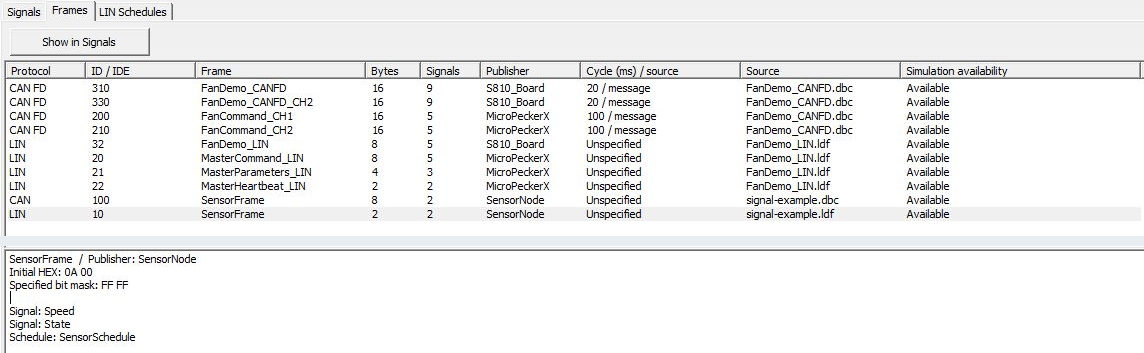
Figure 4. Imported SensorFrame row and details.
- Check slots in LIN Schedules. Select
SensorSchedulewith Sourcesignal-example.ldf. Slots is 1, Master isMasterNode, and Bitrate is19200(19.2 kbps). Details below shows1 SensorFrame SensorNode Rx 100 ms, confirming the SensorFrame slot and Delay 100 ms.
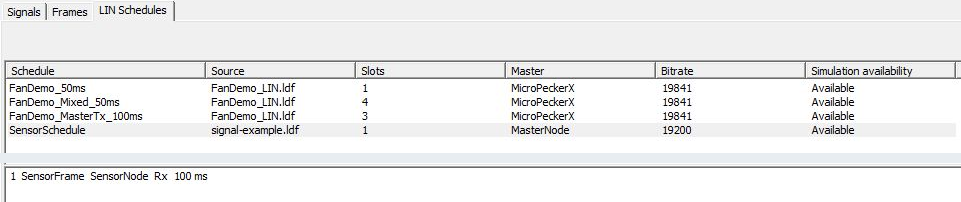
Figure 5. Imported SensorSchedule row and slot details.
- Check physical-value and state-name mappings defined by Signal_encoding_types and Signal_representation.
- The LDF Frames section defines signal placement; Schedule_tables defines frame transmission order and Delay. If there are no candidates in the Catalog's LIN Schedules, check that the target LDF contains Schedule_tables, check candidates under LIN Schedules in the import preview, and click Import. Frames and schedules are registered together; select the items to actually use on the Simulation side.
- Also check communication speed and Master/Slave roles in Device / Simulation settings.
In the current version, select and apply communication definitions imported into the Catalog on the Simulation side. See the schedule/response configuration procedure, and distinguish registration in the Catalog from application to transmission settings.
In the sample, Speed occupies the 8 bits of Byte 0 and State occupies the 8 bits of Byte 1. A Raw value of 100 for Speed converts to 45 km/h. Use Conversion Preview in Signal Setting to compare inputs and results.
Reimporting the Same Definitions
Save the current Catalog to an MPXSIG under a different name before proceeding. Reimporting a file from the same location compares definitions from the same import source. Files with the same name in different locations are treated as different sources. Check signal definitions to be added or updated under Add / Update in the preview. Check frame and LIN schedule contents in their tabs, then apply with Import. Frame or schedule changes are applied even when signal definitions are unchanged and Add / Update is 0.
Manually edited conversions are retained if the corresponding definition in the source file has not changed. If the same definition has been changed separately in the source file and Catalog and conflicts, Cannot apply appears and the import cannot be confirmed. Check which definition to use, resolve the conflict, and reopen the file.
Even if you clear a checkbox in Signals, signal definitions within automatically registered frames may still be added or updated. Check the preview before clicking Import.
Recording the source file name/version, signal count, frame conditions, bit positions, and units helps you review definition changes. Catalog Load replaces the entire Catalog and all Sets, so distinguish it from importing communication definition files.
If Nothing Is Displayed After Import
First check that the target exists in the Catalog, In Set is on, and a channel is assigned. Then compare actual frame conditions and display targets. See Checks When Nothing Is Displayed for details.
For saved-log analysis, result output, and use in transmission settings, see the respective instructions.