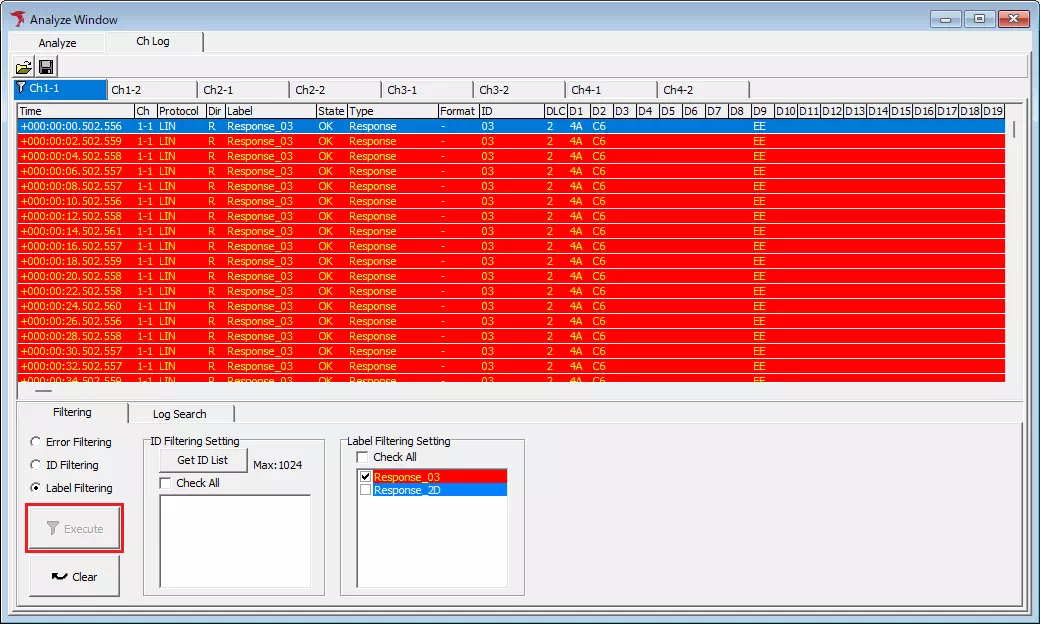
Filter Display Function
The filter display function narrows logs shown in Analyze Window.
In the Filtering tab of Ch Log or Analyze tab, you can filter by:
- Error Filtering
- LIN ID Filtering
- Label Filtering
Filtering Tab Description
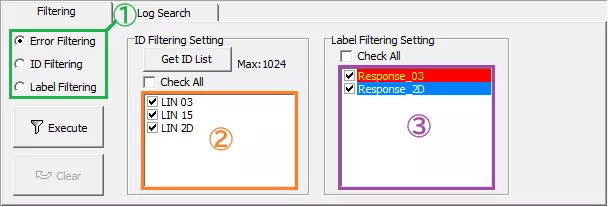
| Item | Description | Notes | |
|---|---|---|---|
| Filter Setting (Area 1) | Sets filter mode. Radio button options are: - Error Filtering: hides error logs. - ID Filtering: hides logs except LIN IDs selected in ID Filtering Setting.- Label Filtering: hides logs except labels selected in Label Filtering Setting. | ID Filtering cannot be selected until ID list is displayed using  button. button.Label Filtering cannot be selected when no label filter is registered in Label Filter Window. | |
 button button | Applies filtering based on selected Filter Setting. | In Ch Log tab, after filtering once with this button, additional filtering conditions cannot be stacked.To apply different conditions, click  first. first. | |
| button | Cancels filtering applied by button. | ||
| ID Filtering Setting | button | Displays all IDs existing in Analyze Window log display area in ID list area. | |
| Check All | Batch-configures whether all IDs in ID list area are included in filter target. - ON: include all IDs. - OFF: exclude all IDs. | ||
| ID list area (Area 2) | Shows all IDs existing in Analyze Window log display area and allows per-ID ON/OFF target setting. - ON: include that ID. - OFF: exclude that ID. | ID list is not shown until button is clicked. | |
| Label Filtering Setting | Check All | Batch-configures whether all labels in label list area are included in filter target. - ON: include all labels. - OFF: exclude all labels. | |
| Label list area (Area 3) | Shows all labels registered in Label Filter Window and allows per-label ON/OFF target setting. - ON: include that label. - OFF: exclude that label. | Labels disabled in Label Filter Window are also shown. | |
Error Filtering Procedure
Error Filtering hides only error logs in log display area.
- Select
Error Filteringradio button
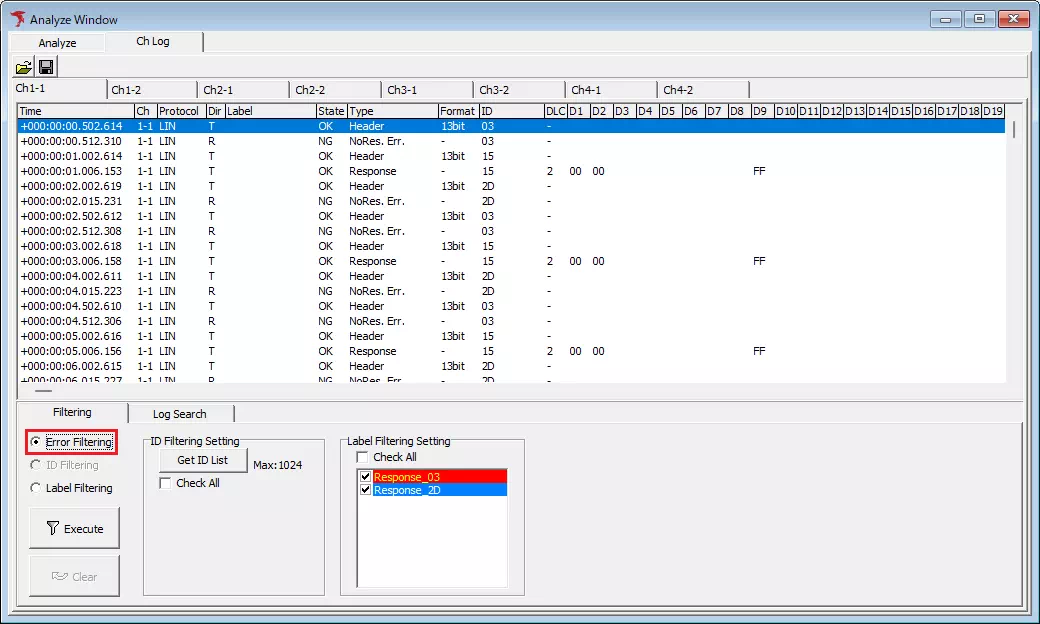
- Click
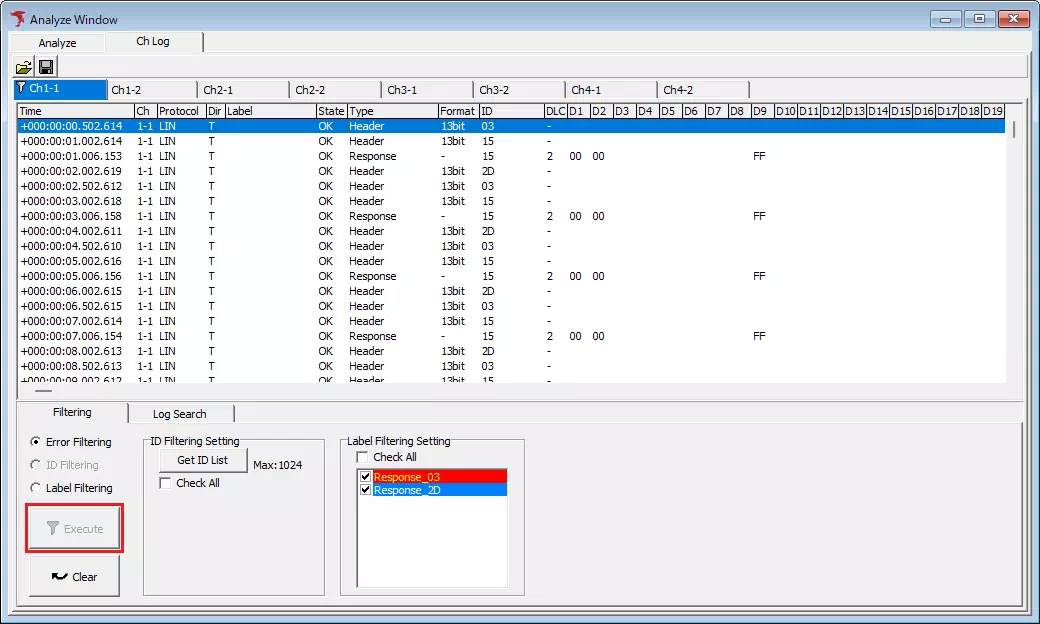
Executebutton
Error logs in log display area are hidden.
ID Filtering Procedure
ID Filtering lets you select target IDs from all LIN IDs in log display area and hides other logs.
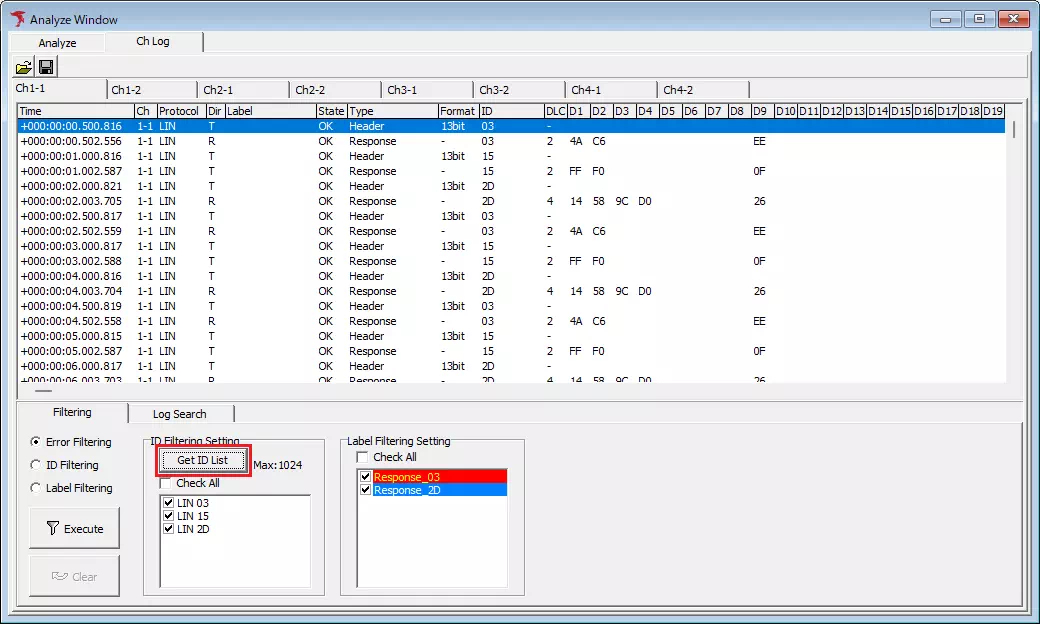
- Click
 button
All LIN IDs in log display area are shown in ID list area.
In the example below, 03H, 15H, and 2DH are shown.
- Select filter targets
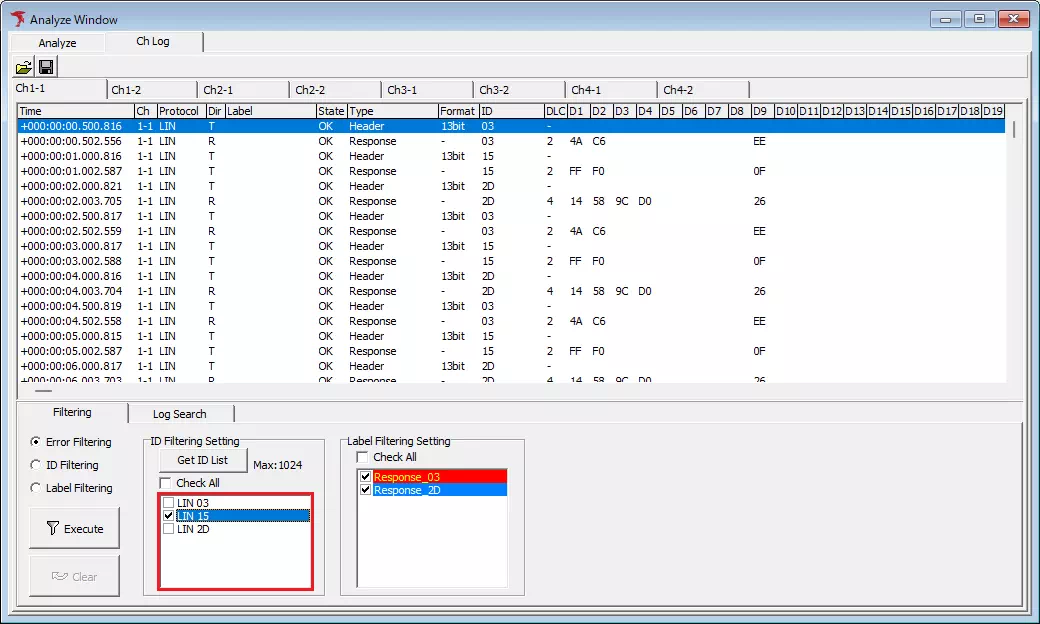
For each LIN ID in ID list area, set whether it is included in filter target using checkbox. ON includes it, OFF excludes it.
In the example below, only logs with LIN ID15Hare selected.
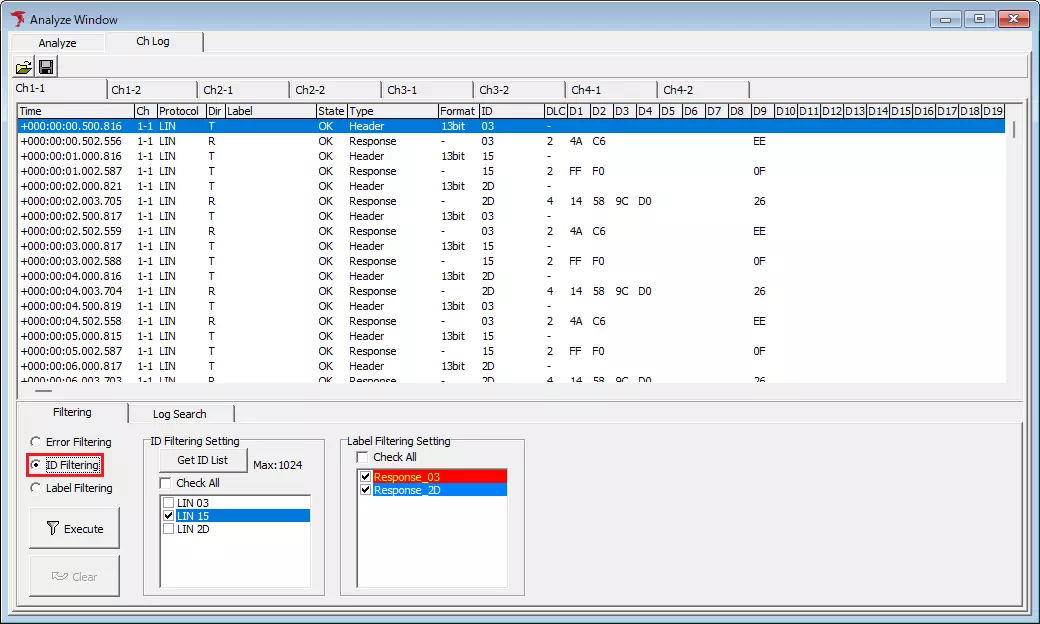
- Select
ID Filteringradio button
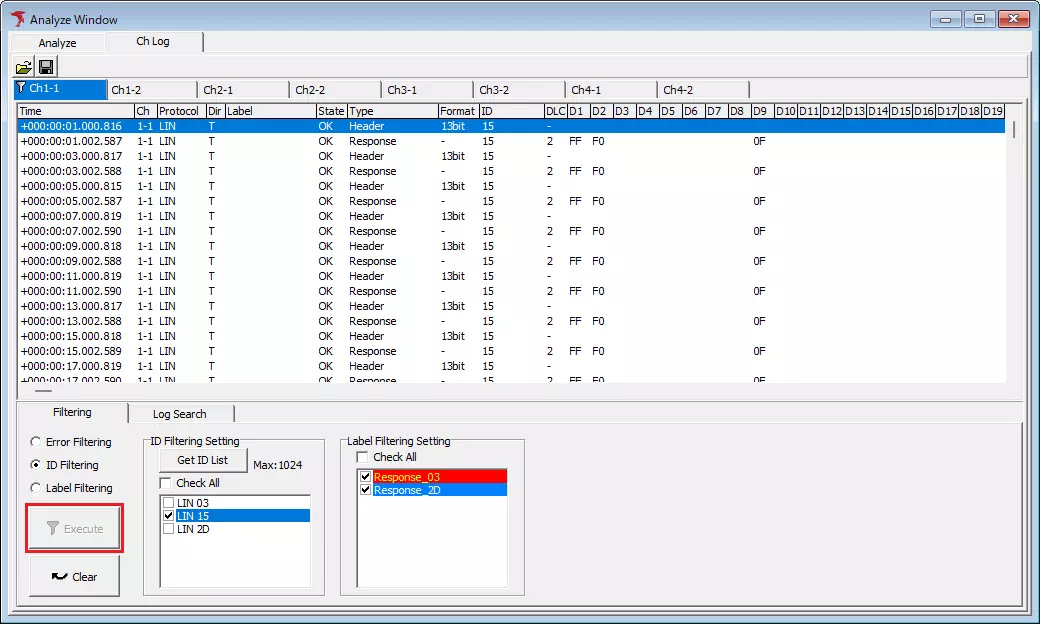
- Click
Executebutton
Only logs of LIN IDs selected in step 2 are shown in log display area (others are hidden).
In the example below, only logs with LIN ID15Hare shown.
Label Filtering Procedure
Label Filtering lets you select target labels from labels configured in Label Filter Window and hides other logs.
info
This procedure assumes labels are already configured in Label Filter Window.
tip
If no labels are configured in Label Filter Window, Label Filtering radio button is unavailable.
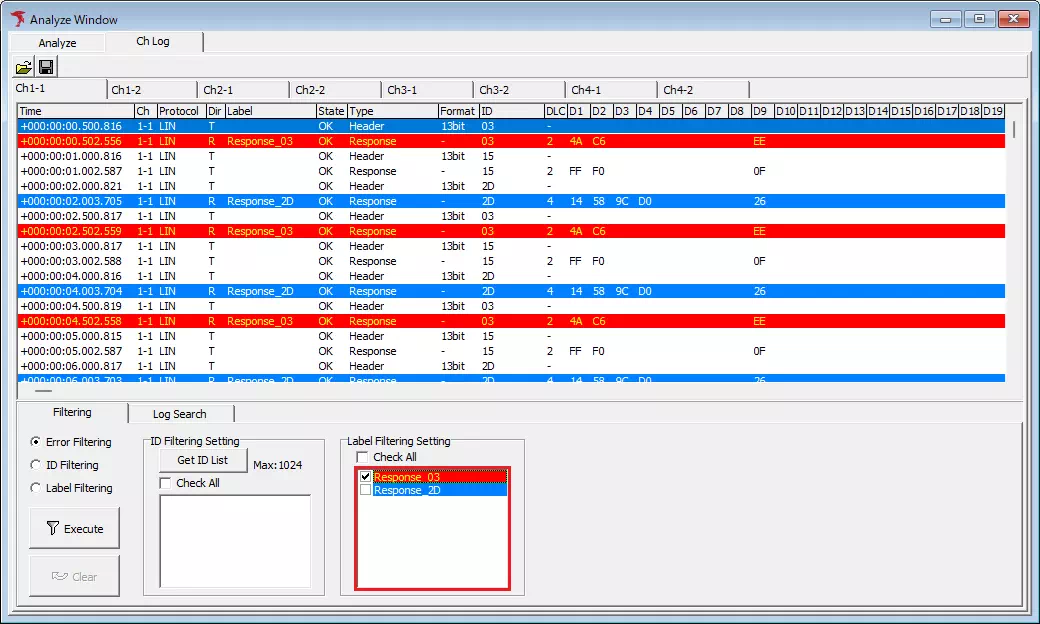
- Select filter targets
For each label shown in label list area, set whether it is included in filter target using checkbox. ON includes it, OFF excludes it.
Initially all labels are selected (ON). If you want to exclude a label, set its checkbox to OFF.
In the example below, only logs with labelResponse_03are selected.
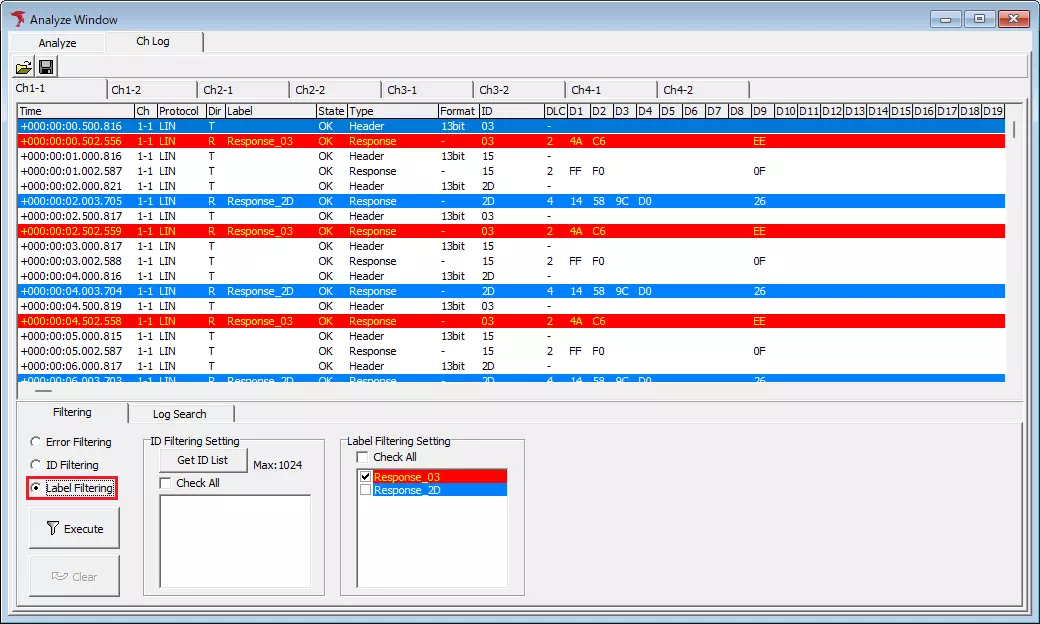
- Select
Label Filteringradio button
- Click
Executebutton
Only logs with labels selected in step 1 are shown in log display area (others are hidden).
In the example below, only logs labeledResponse_03are shown.