Troubleshooting
When This Happens
No MicroPeckerX connected / license not registered
If no unit is connected, or a connected unit has no registered license, window displays change as follows.
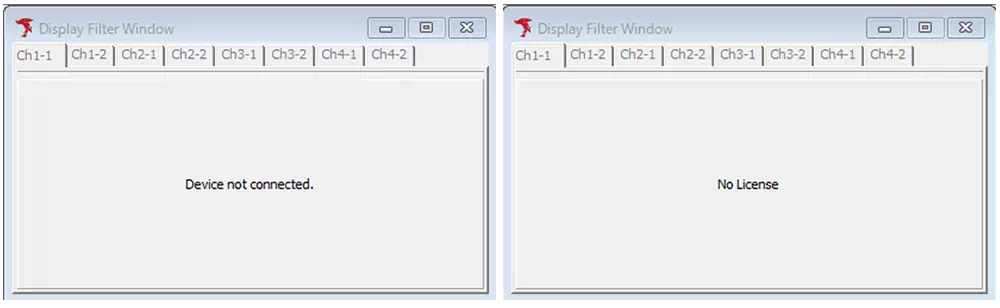
Window display behavior is as follows.
| Window | No connected unit | Connected unit without license |
|---|---|---|
| Device Window | No Device is shown for the relevant channel. | Normal screen is shown for the relevant channel. |
| Trigger Window | Device not connected. is shown. note1 | No License is shown. note2 |
| Display Filter Window | Device not connected. is shown on the relevant channel tab. | No License is shown on the relevant channel tab. |
| Label Filter Window | Device not connected. is shown. note1 | No License is shown. note2 |
| Monitor Window | Device not connected. is shown on the relevant channel tab. | No License is shown on the relevant channel tab.If monitor license is registered, normal screen is shown. |
| Each ID Window | Device not connected. is shown on the relevant channel tab. | No License is shown on the relevant channel tab.If monitor license is registered, normal screen is shown. |
| Simulation Window | Device not connected. is shown on the relevant channel tab. | No License is shown on the relevant channel tab. |
| Analyze Window | Normal screen is shown on the relevant channel tab. | Normal screen is shown on the relevant channel tab. |
note1: If any unit is recognized, behavior depends on whether that unit has a standard license.
note2: If a unit with standard license is also recognized, normal screen is shown.
Nothing is displayed in Monitor Window
- Check whether settings in
Display Filter Windoware correct.
When filtering is active, a mark like is displayed on Monitor Window tabs.
 - Check whether the displayed channel matches the channel of the MicroPeckerX you want to use.
"There was no corresponding log." appears, Analyze Window is not displayed, or logs are blank
- If Trigger Mode in
Trigger WindowisTriggered, analysis/log targets are not recognized until start trigger condition is met. Set Trigger Mode toFree Runor change start trigger settings.
Nothing is displayed in Simulation Window
- Check whether MicroPeckerX is recognized in
Device Window. - Check whether the checkbox on the left side of the MicroPeckerX you want to use is enabled.
"Need Update" is shown even after repeated device updates
- After updating, unplug/replug may be required.
Communication fails
- Check the following:
- Communication cable connection (see "How to connect devices")
- Sync cable connection when using multiple MicroPeckerX units (see "How to connect devices")
Note: Sync cable is required even whenClock Synchronizedis not checked. - Communication settings such as baud rate (see
Device Window)
Error frame is not transmitted
- For ShortMsg error or Framing error, the error position can be configured. Set error position so it remains within frame DL.
If the position is invalid, the error type is shown in gray.
Event log does not behave as expected
- Another event log that can be established at the same time may exist for the target settings. Recheck event log settings. Later-configured event logs take priority.
Schedule does not behave as expected
- Schedule changes are applied only when the current schedule ends, or when a sleep command is accepted and wake-up is performed.
Want to display CAN extended-format ID split as SID and EID
- In
Optiondialog, changeCAN ID FormtoSID/EID.
Want to load logs captured by MicroPecker Analyzer
- Logs from MicroPecker CAN Analyzer can be loaded (Analyze Window, Ch Log tab only).
However, some logs (such as LIN format logs) cannot be converted. Load results (number of logs converted to MicroPeckerX format and number not converted) are shown in a dialog. For details of MicroPecker Analyzer format logs, refer to the MicroPecker Analyzer User's Manual.