GUI Application Screen Structure
Window Overview
The GUI application consists of multiple windows by function.
Click each window tab on the toolbar to display the target window.
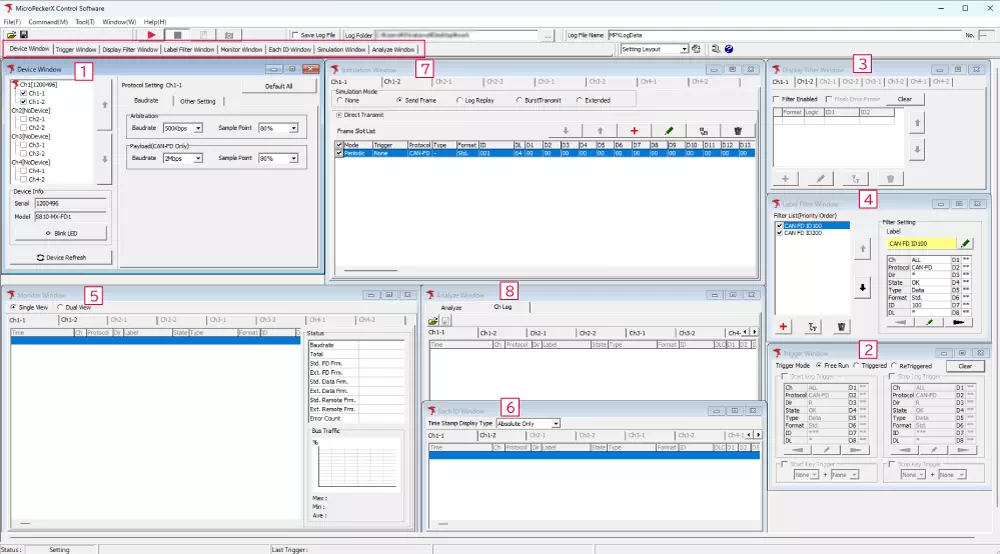
| No. | Window Name | Description |
|---|---|---|
| 1 | Device Window | Configures connected MicroPeckerX units. |
| 2 | Trigger Window | Configures control of logging start/stop by triggers. |
| 3 | Display Filter Window | Configures log display filters for Monitor Window and Each ID Window. |
| 4 | Label Filter Window | Configures labels for specific frames in Monitor/Each ID/Analyze windows. |
| 5 | Monitor Window | Displays logs during monitoring. |
| 6 | Each ID Window | Displays latest information per ID during monitoring. |
| 7 | Simulation Window | Configures CAN/CAN FD frame transmission simulation from MicroPeckerX. |
| 8 | Analyze Window | Displays analysis results for log data. |
Main Window Menu Overview
The following describes items displayed in the Main Window menu.
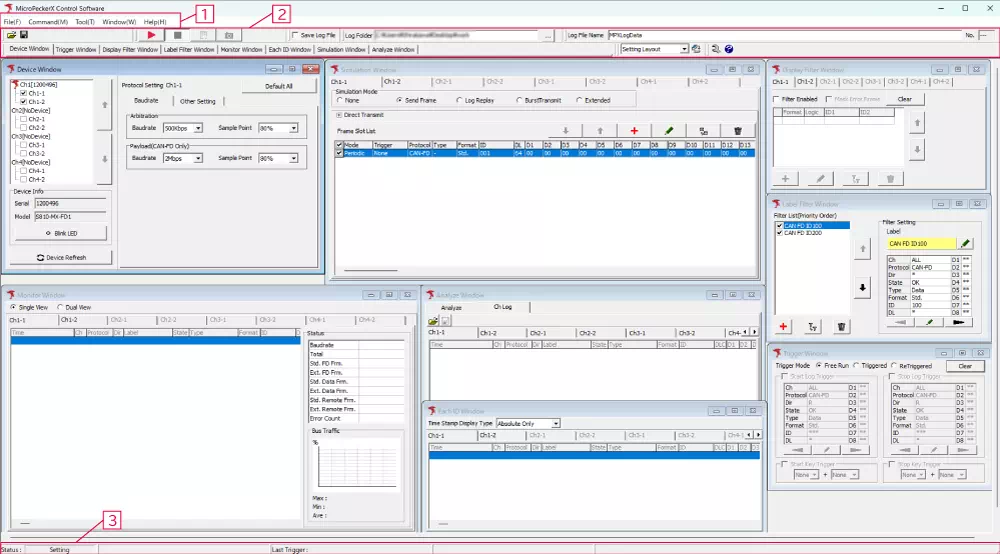
| No. | Category | Description |
|---|---|---|
| 1 | Menu bar | Contains configuration and function menus of the GUI application. |
| 2 | Toolbar | Contains operation tools such as monitoring start/stop. |
| 3 | Status bar | Shows GUI application status. |
1. Menu Bar

Menu List
| Global Menu | Menu Item | Description |
|---|---|---|
| File | Load Configuration | Loads a configuration file. |
| Save Configuration | Saves application settings to a file. | |
| Device | Displays connected MicroPeckerX units and reconnects devices. | |
| Ch Config Import | Imports channel settings. | |
| Exit | Exits the application. | |
| Command | Start | Starts monitoring. |
| Stop | Stops monitoring. | |
| Forced Logging Start | Forcibly starts logging while waiting for start trigger. | |
| Capture (note1) | Saves monitoring logs as capture image. | |
| Tool | Log Editor | Starts Log Editor. |
| Option | Opens Option dialog. | |
| Window (note2) | Device Window | Shows Device Window. |
| Trigger Window | Shows Trigger Window. | |
| Display Filter Window | Shows Display Filter Window. | |
| Label Filter Window | Shows Label Filter Window. | |
| Monitor Window | Shows Monitor Window. | |
| Each ID Window | Shows Each ID Window. | |
| Simulation Window | Shows Simulation Window. | |
| Analyze Window | Shows Analyze Window. | |
| Layout | Saves/deletes window layouts. | |
| Help | Help | Opens user manual. |
| License Manager | Starts License Manager. | |
| About | Opens version information of MicroPeckerX Control Software. |
note1: Under development and not available.
note2: Active windows are checked.
2. Toolbar

Toolbar size and placement can be changed with mouse according to monitor size (layout is kept after restart).
Toolbar: File
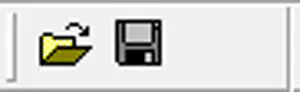
| Menu | Description |
|---|---|
 button | Show Load Config dialog |
 button | Show Save Config dialog |
Toolbar: Command

| Menu | Description |
|---|---|
 button | Start monitoring |
 button | Stop monitoring |
 button | Force logging start |
 button (note) | Capture monitoring screen |
note: Capture function is under development and unavailable.
Toolbar: Layout
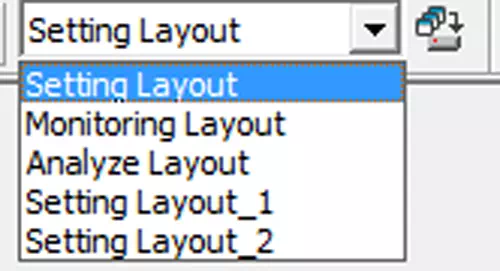
| Menu | Description |
|---|---|
| Dropdown menu | Switch to selected layout |
 button | Save current window layout |
Toolbar: Help
| Menu | Description |
|---|---|
 button | Show option settings |
 button | Open user manual |
Toolbar: Log

| Item | Description | Notes |
|---|---|---|
| Save Log File | Sets whether to automatically save logs to a file during monitoring. The meaning of each checkbox ON/OFF state is as follows. 【ON】 Enables automatic saving of log files. 【OFF】 Disables automatic saving of log files. | |
| Log Folder | Displays the full path of the destination folder for automatically saved log files, selected in the “Browse For Folder” dialog from the  button. | You cannot directly enter the full path in this text box. |
| button | Click to display the “Browse For Folder” dialog, where you can select the destination folder for automatically saved log files. | |
| Log File Name | Specifies the name of the log file to be automatically saved. | |
| No. | A serial number that is automatically assigned each time a log file is saved (cannot be changed manually). | A subfolder with this number is created in the folder displayed in Log Folder, and the log file is saved there. |
3. Status Bar

| Display Item | Description |
|---|---|
| Status | Current status |
| Last Trigger | Information on latest trigger (key/log/timer) |
Status Display Meanings
| Main Status (Color) | Description |
|---|---|
| Initializing | GUI application is initializing. |
| Setting | After GUI startup or Device Refresh. |
| Ready | Ready state before monitoring. |
| Wait for Sync | Waiting for synchronization. |
| Wait Start Trigger | Waiting for logging start trigger. |
| Monitoring | Monitoring in progress. |
| Logging | Logging in progress. |
| Stop Triggerd | Monitoring stopped by trigger. |
| Stop Triggerd Max | Monitoring stopped due to max condition. |
| Monitor Terminated | Monitoring terminated. |
| Log Generating... | Generating log file. |
| Setting Error | Setting error. |
| Device Error | Device error. |