How to Connect Devices
Device Connection and Disconnection
This chapter explains procedures for connecting and disconnecting devices.
How to Connect Devices
Connect to Windows PC
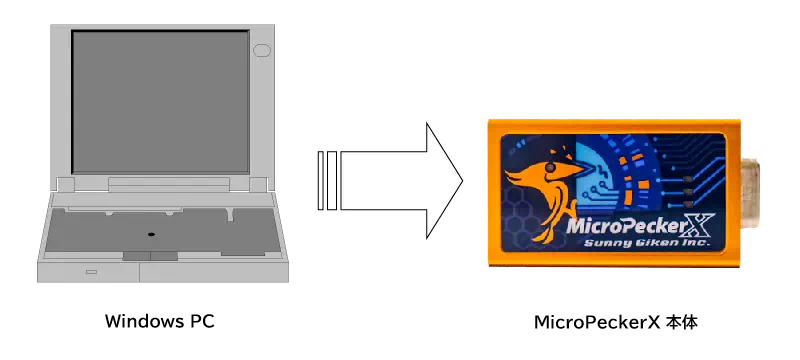
Use the included USB cable to connect MicroPeckerX main unit to a USB port on the PC.
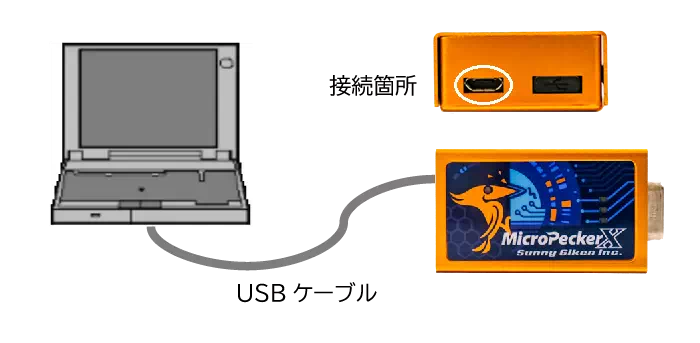
Only the left-side USB port can be used. Do not remove the right-side cap.
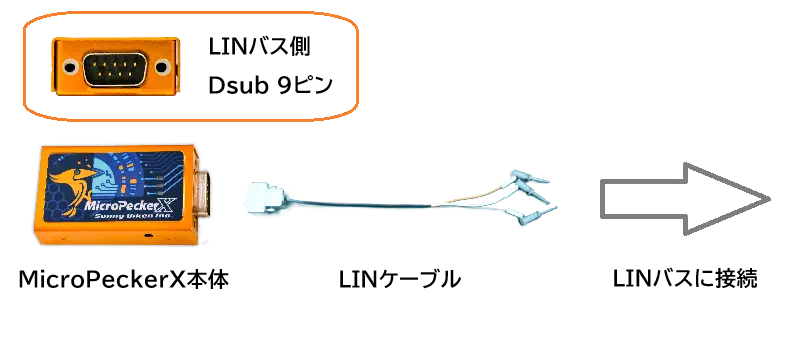
Connect to LIN Bus
Connect the MicroPeckerX main unit and LIN bus using LIN cable. Connections to VBAT, LIN, and GND are required.
Connect Sync Cable
When synchronizing multiple MicroPeckerX units, connect them using the included sync cable.
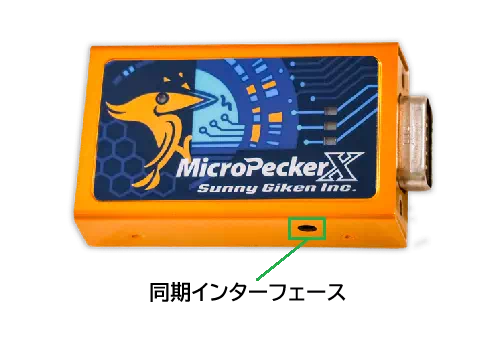
There are two synchronization ports. They are functionally identical, so connect the sync cable according to your installation environment.
Connection Example for 3 Units
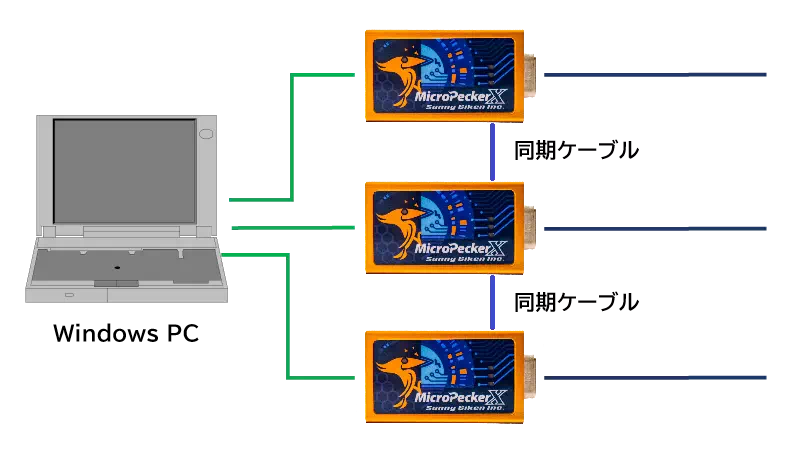
Insert/remove sync cable only while monitoring is stopped.
How to Disconnect Devices
Disconnection procedure is described below.
Disconnect MicroPeckerX from Windows PC
Unplug MicroPeckerX from Windows PC.
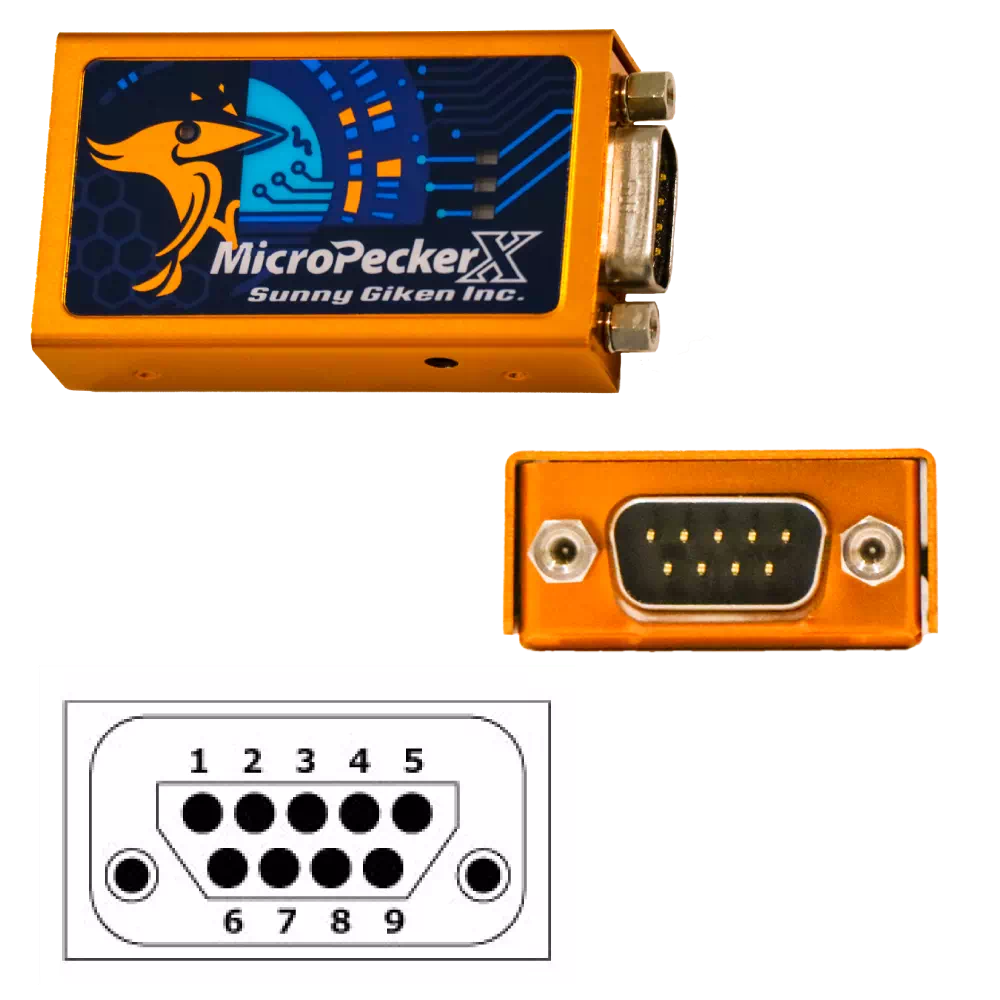
D-sub Connector Pin Assignment
Pin assignment of the D-sub connector on MicroPeckerX main unit is as follows.
| Pin | Function |
|---|---|
| 1 | DIO4 |
| 2 | DIO2 |
| 3 | ISO-GND |
| 4 | AD |
| 5 | GND (for DIO/AD) |
| 6 | DIO3 |
| 7 | LIN |
| 8 | DIO1 |
| 9 | VBAT |
Gray-hatched pins are not used in LIN protocol.
For LIN protocol, use pin 3 (ISO-GND) as GND, not pin 5 (GND).
Incorrect connections may damage both the MicroPeckerX main unit and LIN bus side.